Undo and the history
Every command is one step in the history of the branch you work on, with your name and the time. Undo takes back your own steps, one at a time, and nothing is ever lost from the history.
How to
- Ctrl+Z takes back your last step; Ctrl+Shift+Z or Ctrl+Y brings it back. Undo and Redo are also in the top bar.
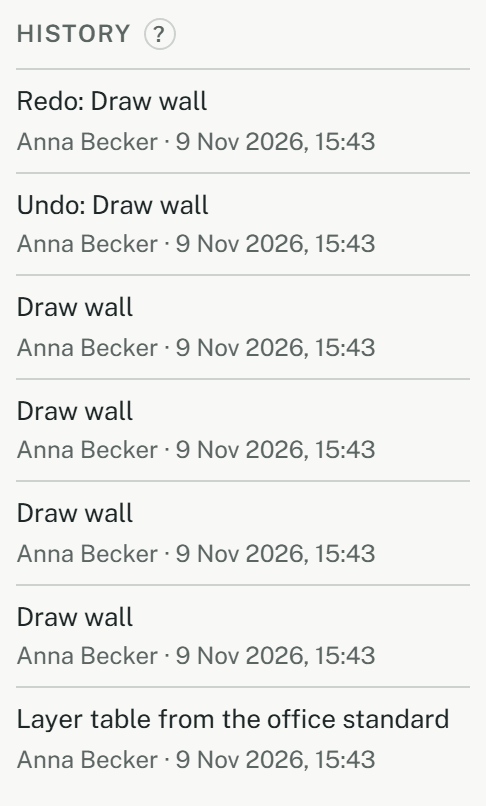
- An undo is a step of its own in the history ("Undo: Draw wall"), so the history always shows what happened.
- The history is at the bottom of the Properties tab of the side panel, under History, and with every model in the project settings.
What to expect
- Undo covers only your own steps, never your colleagues'.
- Starting a new command after an undo drops what could have been redone.
- The history belongs to a branch: the path in the top bar (project, model, branch) says which. Another branch has a history of its own from where it was made.
- Undo and Redo are off where you can't change the model: when your project role only lets you read, on a small screen that only views, and in a signed release opened as it was, which is read only for everyone.
- Every step is saved at once. Without a connection it is kept in the browser and sent when the connection is back; the status bar says how many changes wait.
- If the server refuses a change, the status bar says "Not saved", and the change stays only in this browser. Once nothing else waits, Discard drops the local copy and loads the model from the server.
Going back further
Undo reaches only the steps since you opened the model. After closing it, the history is the way back:
- Click an entry in the history, any but the newest, which is the model as it is now. The model opens as it was after that step, and a bar above the plan says so. Nothing changes by looking.
- Draw there, and a new branch starts from that point, named after its time ("From 9 Nov 2026, 14:32"). Your drawing goes on it, and undo works as usual.
- The branch you came from stays as it is. Back to the current state in the bar, or the branch in the top bar, takes you back to it.
Where you can't draw, because your project role only lets you read or the screen only views, an earlier state is only looked at.
A protected main branch
A project lead can protect a model's main branch. Then only the lead draws on it, and each such step is marked "direct" in the history. Everyone else sees it read only and starts with Draw on a new branch; what they draw there reaches the main branch through a merge request that someone who may approve approves. How that works: Stages, releases and decisions.