Colleagues, roles and access
Who may do what is set on two levels: the office role says who runs the office, the project role what someone may do in one project. Small offices need no setup, because by default every member edits every project.
Inviting a colleague
- Open Office in the top bar. Under Members, in Invite, enter the colleague's Email, choose a Role and click Create invitation link.
- arcraum sends no mail: Copy the link and send it yourself, by mail or chat. It is shown only this once.
- The colleague opens the link. New to arcraum, they enter their name and choose a password under Create your account, then sign in and are in the office at once. With an account already, they choose I have an account: sign in, then Join … with the office's name. The link works once, for that address, for 14 days. There is no other way to register: every account starts from an invitation.
- Until it is used, the invitation is listed under Open invitations, where Withdraw takes it back.
- An address has one open invitation at a time. If the link is lost, withdraw the invitation and create a new one. An expired invitation is replaced by a new one to the same address.
- Owners and admins invite; only owners invite owners and admins.
Office roles
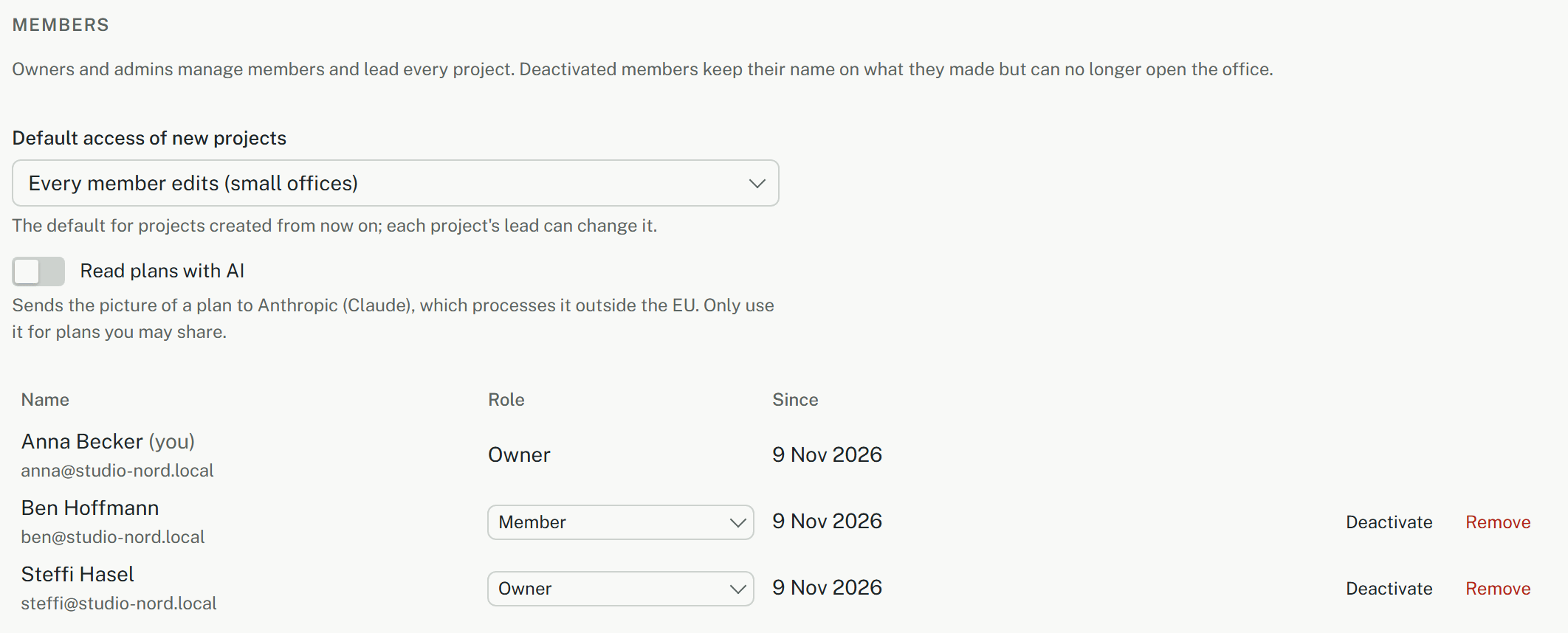
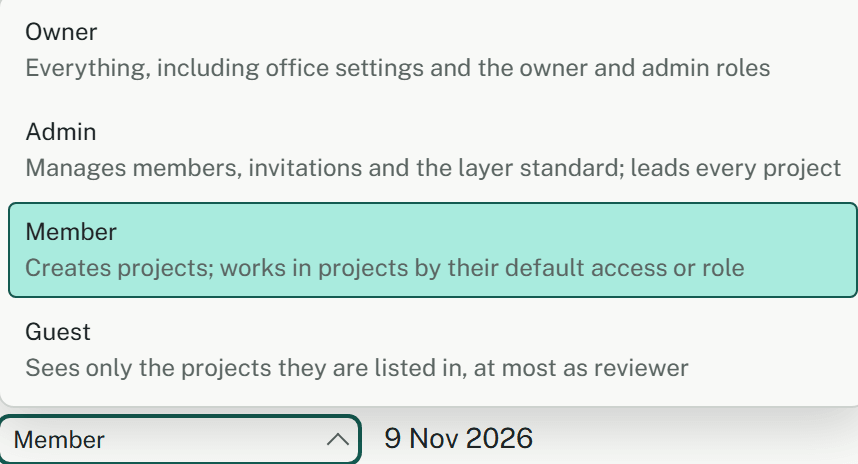
- Owner: everything, including the office settings and the owner and admin roles.
- Admin: manages members, invitations and the layer standard.
- Member: creates projects and works in them by their default access or a project role.
- Guest: sees only the projects they are listed in, and at most as a reviewer. For people outside the office who should see a project.
Owners and admins lead every project. Only owners give, change or take away the owner and admin roles, and an office always keeps at least one active owner.
Project roles
- Viewer: reads the project and its models, and prints.
- Reviewer: reads, and records on site: defects, the site diary, documents.
- Editor: also changes the structure and the models.
- Lead: also changes the master data, the members and the default access, and archives or deletes the project.
Whoever creates a project leads it. Its lead sets the project roles in the project's Settings, under Members.
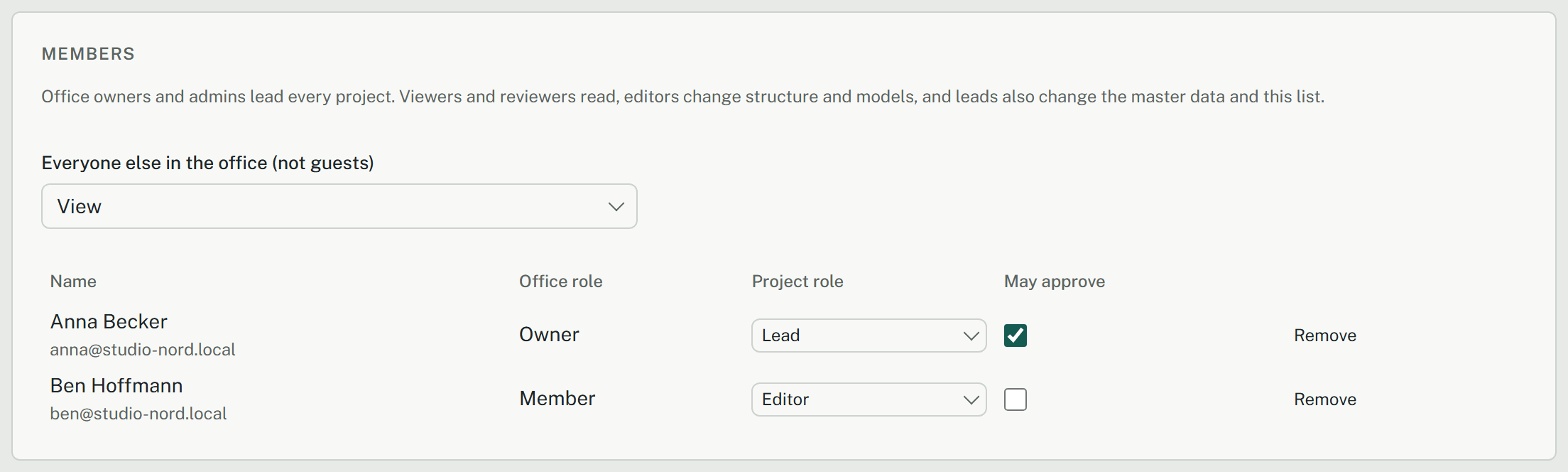
- Everyone else in the office (not guests) is the project's default access: Edit, View or No access (only people listed here). A new project starts with the office's Default access of new projects, which only an owner changes.
- Choose an Office member to add and a Project role, then Add: the person is listed at once.
- Changes to project roles, May approve and the default access wait for Save changes in the bar at the bottom of the page.
- A listed member gets the higher of their project role and the default access; the list says "acts as …" where that differs.
- Guests are at most reviewers, whatever is chosen.
- May approve is a tick, not a role: only someone ticked signs a release or approves a merge request, owners and leads too. How that works: Stages, releases and decisions.
Deactivate rather than remove
- Deactivate keeps the person's name on everything they made and in the history, but they can no longer open the office. Reactivate brings them back.
- Remove takes them out of the office and all its projects, and their name disappears from the history. Keep it for someone added by mistake.
- Member history, for owners and admins, lists who joined, changed role, was deactivated or removed, and by whom.