Panes: several views side by side
The editor can show the model in several panes at once: a plan beside the 3D view, two storeys side by side, or a plan with the storey below it shown faintly. All panes show the same model; each has its own view of it. How you arrange them is yours alone and changes nothing in the model.
The four layouts
In the top bar, choose how the editor is divided:
- Plan: one plan.
- 3D: one 3D view.
- Split: the plan on the left, the 3D view on the right.
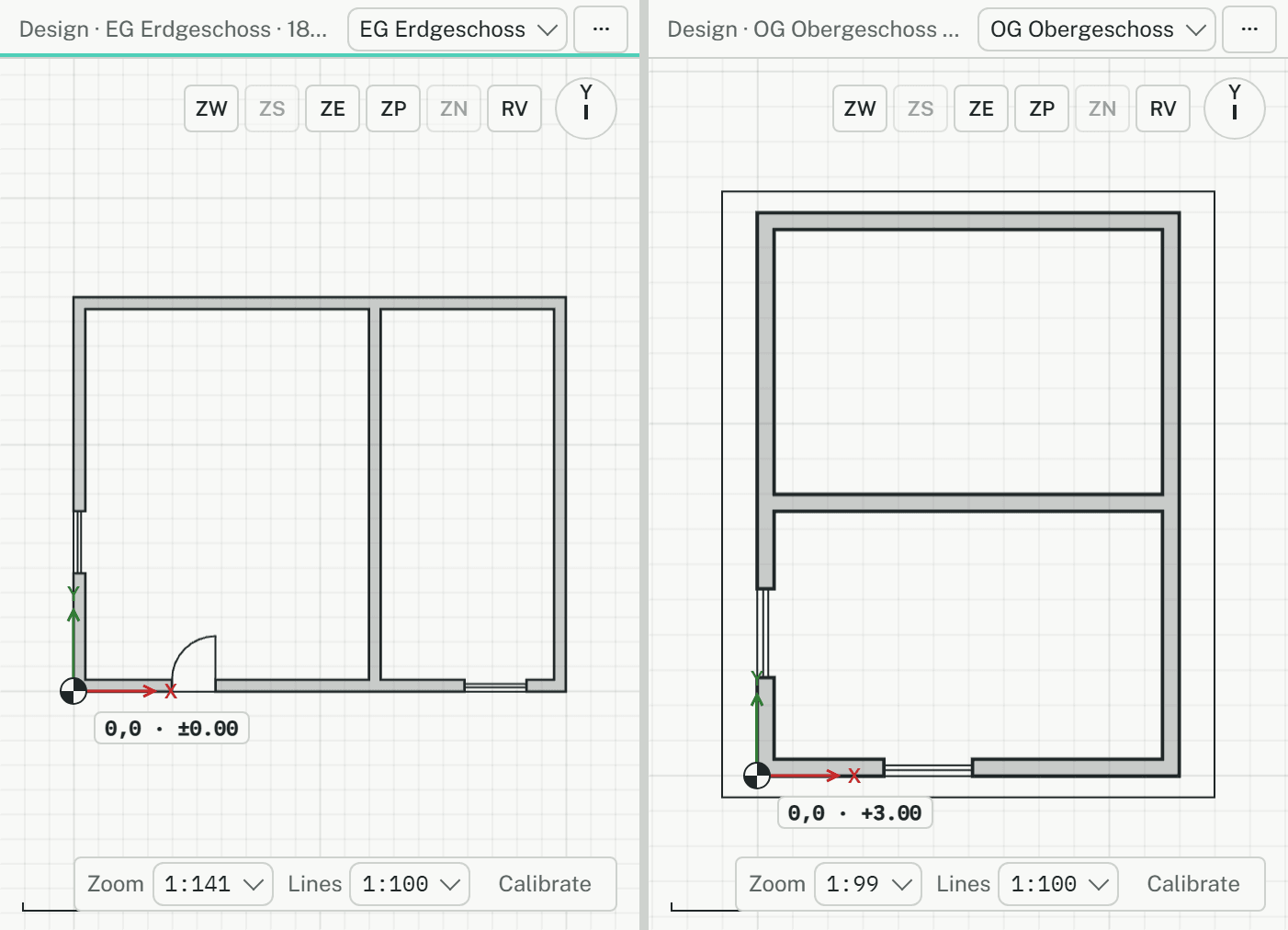
- Compare: two plans side by side, for instance two storeys.
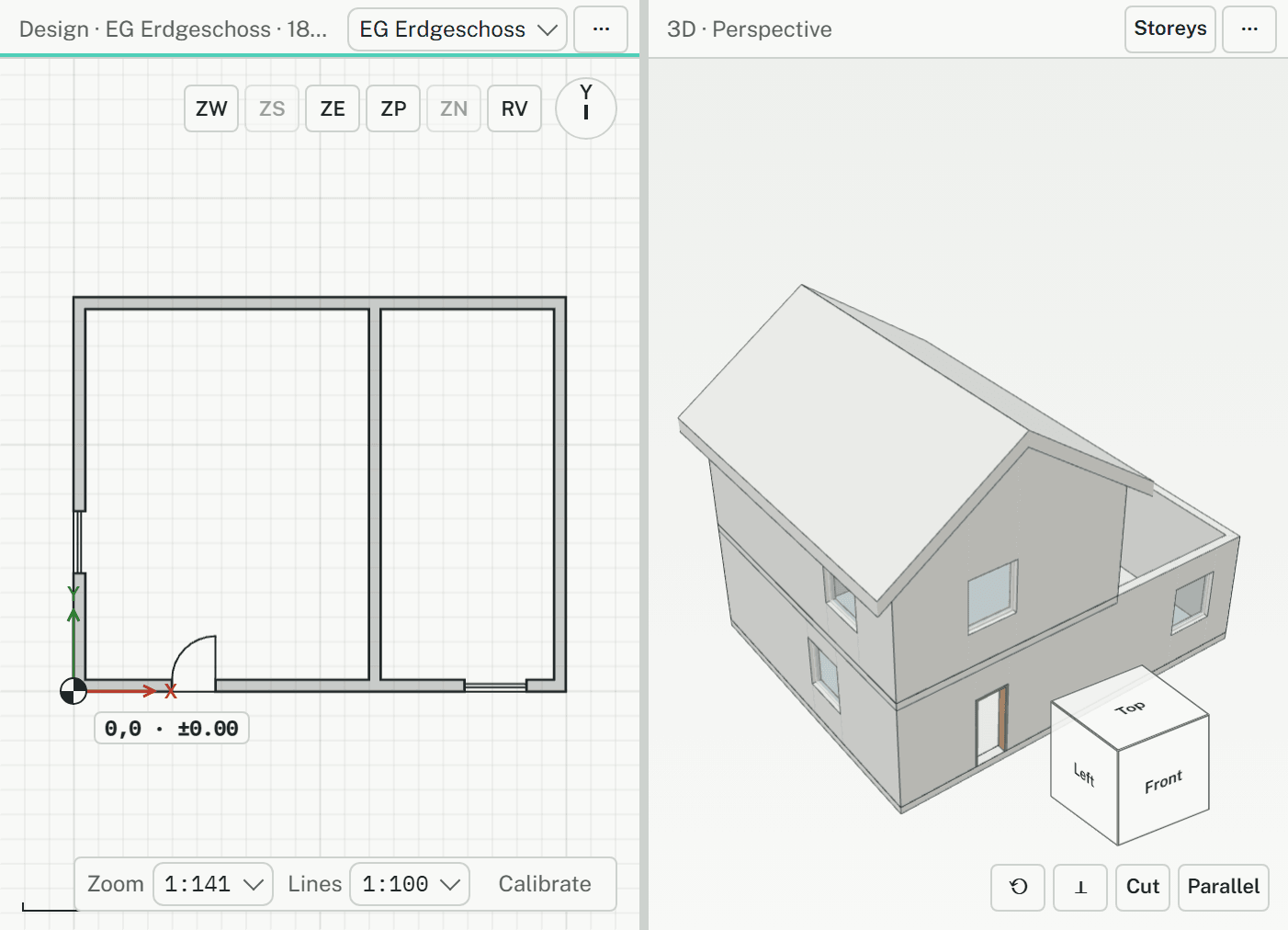
A layout replaces the panes there were: panes it doesn't have are gone, with their views.
Splitting and closing a pane
Each pane has a strip at its top with its own buttons:
- ◫ splits it side by side, ⊟ one above the other. The new pane starts as a copy, so nothing moves on screen.
- 3D turns a plan pane into a 3D view, Plan turns it back.
- × closes the pane; the one beside it takes its place.
- Drag the line between two panes to change their sizes, or click it and use the arrow keys.
There can be up to six panes. When a strip is too narrow for its buttons, they go under ⋯; the storey select always stays in the strip.
A storey per pane
Every plan pane has a storey select in its strip, once the model has two storeys or a roof. It changes that pane only. So Compare shows two storeys at once: pick the other storey in the right pane.
Which pane is active
You draw in the active plan pane, which has an accent line under its strip. The snap marker shows there, and new elements go onto its storey. Panes on other storeys show no selection and no preview of the running tool.
- Moving the pointer into a plan pane on the same storey makes it active at once, so a line started in one pane can be finished in the other.
- A plan pane on another storey becomes active with a click. That click ends what you were doing, as changing the storey does.
- Turning the wheel, dragging with the middle button or touch gestures move a pane's view without making it active.
The browser's address names the active pane's storey, so a link you copy opens on it.
Linking panes
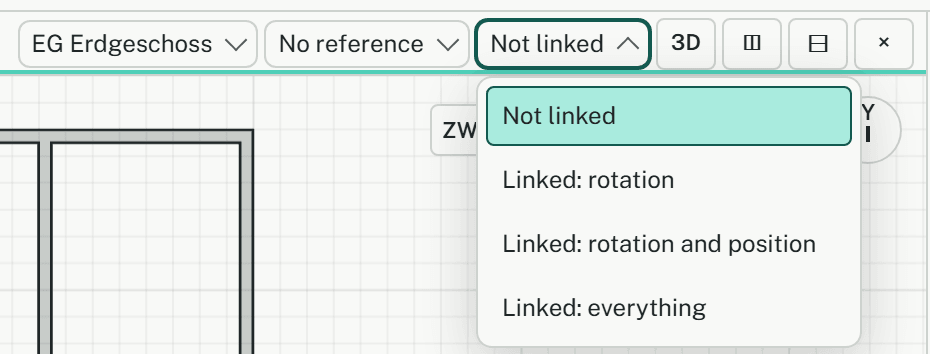
With two panes or more, each strip has a link select, which reads Not linked at first. Linked panes follow each other as you move one:
- Not linked: the pane keeps its own view.
- Linked: rotation: the panes turn together.
- Linked: rotation and position: they also show the same place in the middle.
- Linked: everything: they also zoom together. Two 3D views then also share how steeply they look down.
Two panes follow each other only when both are linked, and then only as far as the lesser of their two links. A linked pane shows ⇄ in its strip, also when its select is under ⋯.
A plan and a 3D view share which way is up on screen, the point in the middle and the zoom at that point. Turning the plan with Shift+← turns the 3D view with it, and turning the 3D view turns the plan.
Home
Home fits the active plan pane and every 3D pane. Other plan panes keep their view, as one may show a detail on purpose. A 3D view linked to the plan in position or more follows the plan's fit instead of fitting itself.
The reference storey
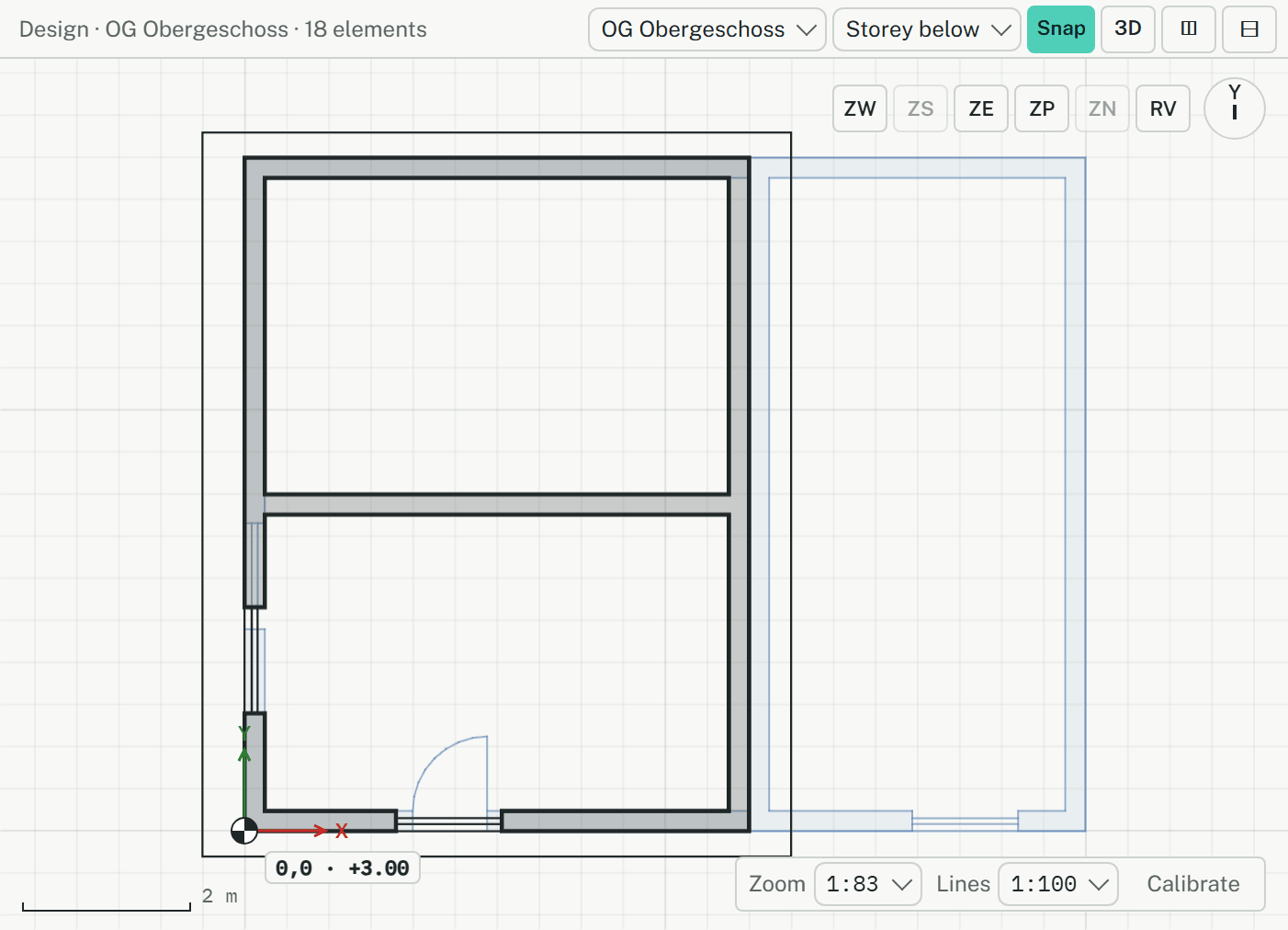
A plan pane can show another storey under its own, in one faint colour, to draw on top of it: a set-back upper floor over the ground floor, for example.
- In the pane's strip, open the reference storey select, which reads No reference at first (it is there once the model has two storeys). Storey below follows the pane when it changes storeys; a storey picked by name stays.
- Or type RF and press Enter: it switches the storey below on and off in the active pane.
- Snap in the strip decides whether points of the reference storey can be snapped to. It is on at first; switch it off when a dense plan gets in the way.
What is kept, and where
- Layout, links and each pane's view, storey and reference storey are kept in this browser, per model and per tab; a new tab starts with the last ones kept. Nobody else sees them, and they never reach the model.
- Hidden and locked layers are the same in every pane.
On small screens
On a phone, and on screens up to 700 pixels wide or 500 high, panes have no buttons of their own and there is no Compare, no link select and no reference storey select. A phone held upright shows panes one above the other; on its side, side by side. The storey select stays in each plan pane's strip.