Office library and project library
The office keeps what it draws with in one library: materials, build-ups, parts and objects, its standards and its cost benchmarks. Each project draws from a library of its own, made of copies. So a change in the office never changes a running project by itself, and a project can adapt its copies without touching the office's.
The office library
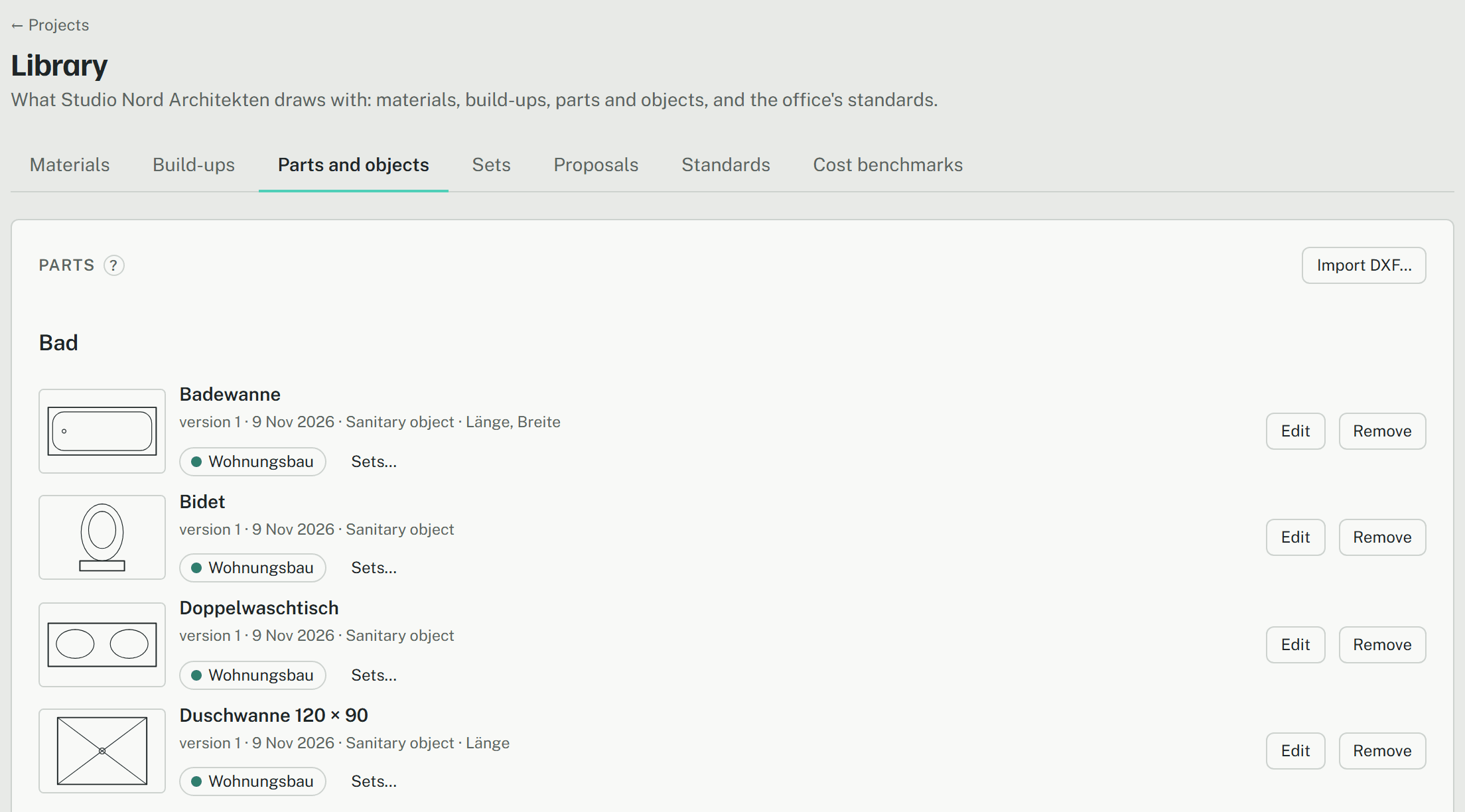
Library in the top bar opens it, one tab per kind:
- Materials and Build-ups: the hatches and layer sets of the office, with manufacturers' products imported (see below).
- Parts and objects: drawn parts, furniture and sanitary objects, with the starter catalogue every office gets.
- Sets: groups of items by what they are for, such as housing or step-free use, each with a colour. An item can be in several; Sets… on an item puts it into them.
- Proposals: what projects offer the office, with the open ones counted.
- Standards: the layer standard and the line standard, with their published versions.
- Cost benchmarks: the office's € per m² BGF or m³ BRI, used by the Kostenschätzung.
Everyone in the office but guests reads the library; owners and admins change it, and only they see the Proposals tab. Removing an item hides it: nothing is deleted, and projects keep their copies.
A project's library
Each project has a library of its own: Project library on the project's overview, or Open the project library in its settings. The hatch, build-up and part tools offer only what is there. Everyone in the project reads it; whoever may edit the project changes it.
- A new project starts with the basics: the building set of materials and a few build-ups, but no parts.
- Save as part… (BTS) in the editor saves a drawn selection as a part of the project library.
Adding from the office library
- On the project library, choose Add from office library. It lists only what the project doesn't have yet.
- Under By set, press a set: every item in it is ticked. Under By kind and item, tick a whole group, or Show items to tick them one by one.
- Choose Add … items.
Newer versions
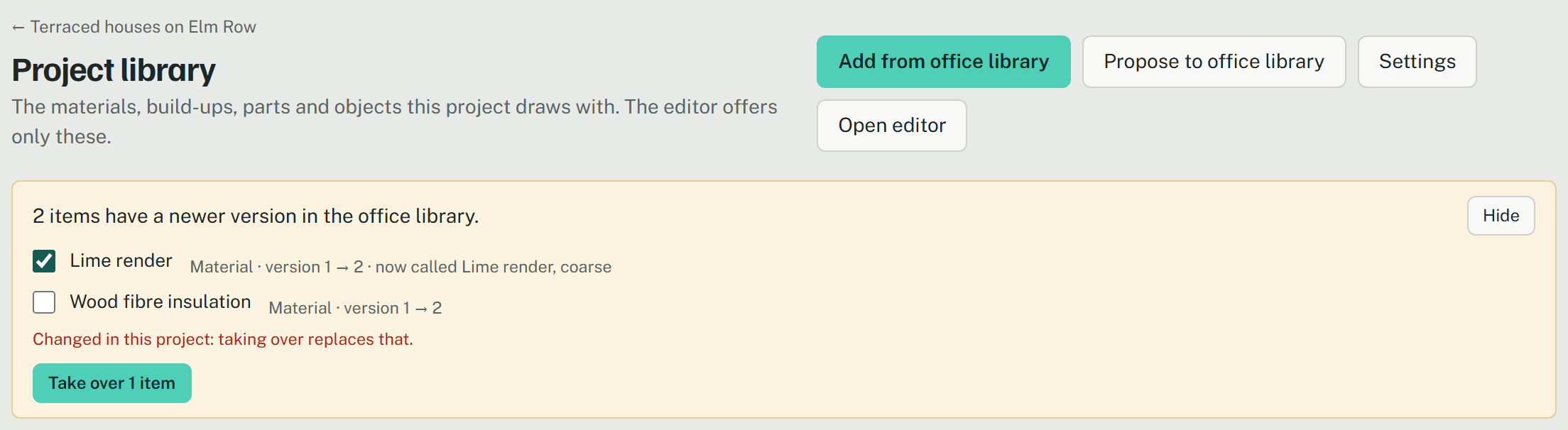
When the office changes an item a project has copied, a bar over the project library's tabs says so: "1 item has a newer version in the office library". Show lists each with its versions and a new name, if any. Items not changed in the project are ticked; one changed there says that taking it over replaces the change. Take over … items copies the ticked ones. Nothing changes by itself.
Proposing to the office
A project's own items, and copies it changed, can go into the office library for every project:
- On the project library, choose Propose to office library, tick the items, add a note on why the office should keep them, and choose Propose … items.
- An owner or admin opens Library, tab Proposals. They settle the name, for a part its category, and the sets, then Accept it as a New item or as a new version of the office item it renews. Or they type a reason and Reject it.
- The answer shows on the project library under Proposals to the office library. While a proposal waits, Withdraw takes it back.
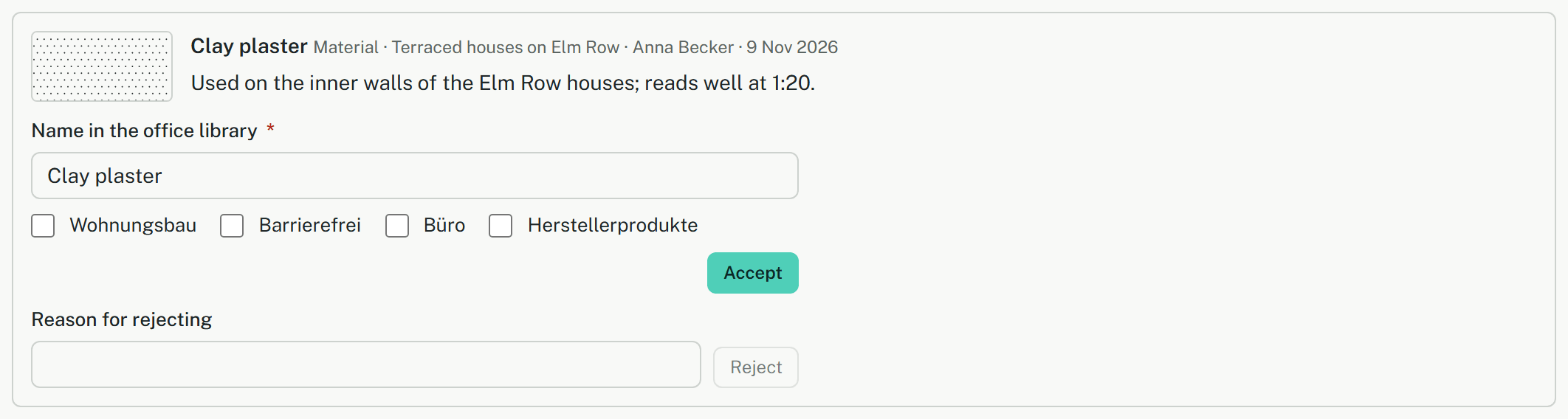
Once accepted, the project's item is linked to the office's, and other projects with a copy are offered the new version.
Manufacturers' products
Owners and admins import products on the tabs Materials and Build-ups, under Import manufacturers' products. Search ÖKOBAUDAT searches the federal database of building materials (EPDs to DIN EN 15804): tick up to 20 datasets, read them, check what was found and add it. A material keeps its manufacturer, density and source; EPDs rarely state λ. Choose IFC file… reads a manufacturer's IFC file (IFC2x3 or IFC4) in the browser without uploading it: its layer sets become build-ups, its materials materials.